Bob Plankers, over at The Lone Sysadmin wrote a couple days ago about getting busted while reading the wiki page on X-Men. He tried to cover it up by claiming to be researching future host names. Quick thinking, Bob. Good job! ;-)
It does bring up a good point, though. Internal naming schemes are something that everyone has an opinion on, and a load of suggestions.
At various places, I've used greek/roman gods, Simpsons characters, beer companies, wine labels, and fish.
At my current company, we used the beer and wine names. We absorbed another company that used fish. It worked fine for a while, but we grew in terms of servers and locations until it got unwieldy to remember A) all the names, and B) what each name did. You'd also start to get very similar names after a while. We've now got 4 physical locations, soon to be 5, and something like 50-60 servers (not counting network devices), no one would be able to keep them all straight (including the admin).
To improve the situation, we're in the process of changing to location-based hostnames with a flat internal domain structure. For example, the 2ndary application server in Ohio is oh-app2, with the fake internal domain name trailing. The alpha site's primary fileserver is a-fs1.
It's no where near as fun as "wolverine.internal.com" but it certainly does tell you where you're connecting to and what the machine does. What makes it interesting is when you go changing things like CVS repositories on people's machines, mail servers, etc. The policy we've taken is to alias the old information to the new, and slowly phase out the old method.
What do you use as internal naming systems? What do you think would make an excellent scheme? Make sure to check the list to make sure it hasn't been done before!
Tuesday, July 1, 2008
Monday, June 30, 2008
Backing up config files
As systems administrators, we're responsible for maintaining a semblance of consistency across the infrastructure. Obviously, devices across the network will probably not match each other identically, but consistency in this case is more than just identical configurations in multiple cases. It's maintaining a standard documentation profile for every device, in whatever language that device understands. It's also maintaining a consistent backup policy for that configuration, and a record of previous configurations.
By default, not every device keeps records of the old configurations. Almost every device has the ability to save the configuration as a local file, though. Sometimes it's in binary, but usually it's in text. In either case, a subversion repository would be the perfect storage medium. Checking in new configs with notes relating to the changes made are excellent ways to track the configurations of various devices. This also allows you to browse the history of a device's configuration which might be useful if you can't find other sources of documentation (When did we get that Qwest line again? No, the one before this one).
Thanks to the flexibility of svn, testing configurations is a breeze with branches available for testing. Connecting an svn repository with a tftp server would allow for excellent flexibility in remote configuration of devices. Set up correctly, it can also manage host configurations without much effort.
It would also be a good way to store public certificates. Distributing the cert to all the machines that needed it in a web cluster would be much easier that way.
Anyway, I suspect that subversion holds a lot of promise as a systems administration tool. At some point, I'm going to investigate it further, and I'll post the results on this blog.
By default, not every device keeps records of the old configurations. Almost every device has the ability to save the configuration as a local file, though. Sometimes it's in binary, but usually it's in text. In either case, a subversion repository would be the perfect storage medium. Checking in new configs with notes relating to the changes made are excellent ways to track the configurations of various devices. This also allows you to browse the history of a device's configuration which might be useful if you can't find other sources of documentation (When did we get that Qwest line again? No, the one before this one).
Thanks to the flexibility of svn, testing configurations is a breeze with branches available for testing. Connecting an svn repository with a tftp server would allow for excellent flexibility in remote configuration of devices. Set up correctly, it can also manage host configurations without much effort.
It would also be a good way to store public certificates. Distributing the cert to all the machines that needed it in a web cluster would be much easier that way.
Anyway, I suspect that subversion holds a lot of promise as a systems administration tool. At some point, I'm going to investigate it further, and I'll post the results on this blog.


Sunday, June 29, 2008
DNS Changes through ICANN
In case you haven't heard the news, and probably everyone has, ICANN has passed, by unanimous vote, to "relax" the rules that limit the top-level domains. "Relax" is maybe an understatement. The phrase might be "completely rewrite the internet".
To make a long story short, for the low, low price of $50,000 to $100,000, you too can create and own a top level domain (TLD). ANY unused TLD, up to 64 characters. As you might imagine, this will shake things up a little more than when they added .mobile and the other > 3 char names.
We don't have to worry about it until 2009, but it might not hurt to start taking a look at any DNS scripts that rely pre-conceived notions of how domain names should look.
To make a long story short, for the low, low price of $50,000 to $100,000, you too can create and own a top level domain (TLD). ANY unused TLD, up to 64 characters. As you might imagine, this will shake things up a little more than when they added .mobile and the other > 3 char names.
We don't have to worry about it until 2009, but it might not hurt to start taking a look at any DNS scripts that rely pre-conceived notions of how domain names should look.
Friday, June 27, 2008
HOWTO: Order a T1
Many administrators out there have networks whose connection to the internet is broadband based. Whether it be cable, DSL, FiOS, or something else, your sole connectivity relies on this service.
For many small locations, this is sufficient. Lots of small offices don’t need the reliability of dedicated circuits, but others can’t survive without it.
If you’re responsible for a network that should depend on the increased reliability of a T1 (or multiple T1s), it’s your responsibility to figure out how to get that taken care of. That’s where I can give you some pointers.
Over the course of my current position, I’ve ordered, as near as I can tell, around 6 or so T1 circuits (or DS-1 circuits, as they’re sometimes called). Every one is a little bit different, but similar enough that with some pointers, you can feel confident ordering them as well.
A primer on T1s
You’re probably familiar with normal broadband services such as cable and DSL. They sell both business and home accounts, but they’re both the same idea, and they’re both “best effort”. What that means is, you’re not guaranteed any amount of bandwidth at any particular time. The speed quotes you get from the advertising are theoretical maximums, and are dependant on the prevailing traffic of your section of the provider’s network. There are also no Service Level Agreements (SLA’s), which promise you a certain percentage of 9’s (as in 99.999% availability). In terms of cost, broadband typically costs somewhere between $40 and $120 dollars, depending on the level of speed, and the services the provider lets you run on your connection.
Contrast that with a T1. A T1 is a dedicated circuit between you and the telephone company. It runs at 1.544Mb/s both ways, always. Provided there are no malfunctions with the equipment, you are guaranteed 1½ Mb/s constantly. In addition, you get an SLA guaranteeing that your service will be available a certain percentage of the time. The cost of this type of reliability is much higher than broadband, usually totaling between $450 and $800, depending on your location. A T1 is completely unfiltered, allowing you to run any service that you want on your connection.
Step 1: Looking for a carrier
When it comes to buying a T1 circuit, you’ll end up getting the physical circuit from the local telephone company, and possibly the digital signal from another carrier. Neither of those companies may end up being the one you pay for the service. Here’s why.
Reselling T1 service is a big business. Big enough that there are even companies dedicated to finding you providers, and aggregating price quotes from them to help you compare and contrast their services.
The actual phone lines are owned by the Incumbent Local Exchange Carrier (ILEC), and by antimonopoly laws are required to provide access to Competitive Local Exchange Carriers (CLECs). In the case of my New Jersey lines, Verizon is my ILEC, and my service is provided by AT&T (the CLEC). In Ohio, my ILEC is Windstream, and my provider is Qwest.
To make matters more interesting, or difficult, lots of large Tier 1 providers resell their T1 services to smaller companies who buy them in bulk. Since the services bought in bulk are cheaper, the savings can be passed along to the purchasing companies (that’s you).
This knowledge comes as a double-edged sword, however. The service provided by these resellers may be cheaper, but customer service can definitely take a hit. If you buy from a reseller, you may end up with a Tier 1 provider’s line, but unable to contact the Tier 1 provider for support, since you’re really the customer of the reseller. I’ve been in this situation, and it’s very frustrating. I don’t recommend using a reseller unless it’s the only way you can afford the circuit.
Step 2: Comparing the offerings
Assuming you’ve either gotten several quotes yourself or used a quote aggregator, you’re looking at a lot of dissimilar offerings. Here are tips on making sense of them.
First, make sure you’re comparing apples and apples. You’ll be getting quotes for “managed” and “unmanaged” services. The only difference is that with a managed service, the provider (or someone contracted by them) provides and manages the router which is used to connect to the T1. Go with an unmanaged service and you’ll be expected to provide (and troubleshoot) the endpoint equipment.
If you’re familiar with routers, this is probably the best option for you. An older Cisco 2611 router can be purchased used for the price of 2 months of “managed” service. If you’re not familiar, managed might be worth the money.
Make sure you compare contract terms evenly as well. The usual minimum term limit is 2 years, and most places will give you a discount if you sign for three. If you decide to save the additional money, make sure you know under what terms the contract can be prematurely terminated. We once cancelled a contract in the middle of a 3 year term because they decided to raise circuit rates on us.
You’re also going to be seeing people quoting full price, as well as the broken down pricing of “loops” and “port” charges. It sounds complex, but it’s pretty simple.
Since the T1 is a dedicated circuit, it needs a dedicated port. The ILEC, who owns the lines, as well as the machines the lines plug into, charges a per port fee. It’s usually $150-$300, though I suppose in some places, it could be a little more or less.
The loop charge is the cost of running the digital circuit from the telephone office (telco) to the site. This fee varies based on distance from the office. I’ve seen it from next to nothing ($100 on the same floor of a co-location) to $600 (or more). If you’re remote, then this is the part that’s going to cost you.
If you absolutely need the service, but the price is a little steep for you, the option exists to get a "fractional T1". In my opinion, it's really not worth it, as the minority of the cost is the bandwidth. You'll still be paying full price for the port, and the majority of the loop.
Step 3: Ordering the T1
Actually getting the circuit ordered is pretty simple, once you've got a provider picked out. In most cases, all you need to do is tell them you want it, and sign the contract. If you have need of a lot of externally facing IPs (probably more than are in a /28 subnet), you'll probably have to fill out an IP justification form, that the provider will accept and deliver to ARIN.
The provider may also ask you where you want the line terminated. The options are usually leaving the connection in the Main Distribution Facility (MDF) on the ground floor, where all the lines come in, or whether you want the line installed to the Intermediate Distribution Facility (IDF), which is usually the telephone closet on your floor. You can also have them run the line to where your equipment is, in your server room. For lots of people, these three rooms are the same place.
It takes time to get a T1 installed, as well. Depending on the level of cooperation between your provider and the ILEC, I've seen as quickly as 5 weeks and as long as 3 months, with the shorter side (around 6 weeks) to be average.
Step 4: Getting the T1 installed
Getting to the point where you can use the T1 takes a couple of steps. Your provider should be in touch with you after a couple of weeks to let you know when your FOC date is. This is the day that the line will be physically installed on premesis. It's necessary that the ILEC's worker has access to both the MDF on the ground floor of the building, as well as the place you told them you wanted the line installed.
After the technician comes and physically installs and tests that the line is terminated correctly, you will get notice from your provider that you can schedule your "Test and Turnup" date, and you will be given the contact to arrange this with. The "test and turnup" actually activates the "signal" going to your T1.
Step 5: Test and turnup
At this step, you will need the Customer Premise Equipment (CPE) on-site and ready to plug into the T1. The CPE is really just the router that talks to the internet. If you haven't received the information already, request your IP details from your provider, and they'll give you the information on how to configure the router.
Chances are that you'll have a /30 network (/30 allows two usable IPs. One will be the provider endpoint, the other will be your router), and another network, probably /28 (depending on how many IP addresses you requested).
The router that I use most frequently to connect to my T1s is a simple Cisco 2600 series. In addition to the 2600, you need a T1 CSU/DSU Wan Interface Card (WIC), that just slides in the back of the router. Any Cisco refurb dealer should be able to get you these pretty cheaply. In fact, the T1 WIC will probably cost more than the router. I'd expect a few hundred total, but shop around. Prices fluctuate constantly.
If you feel uncomfortable configuring your router for a T1, you can look online for instructions, but there are several "right" ways to do it, depending on how your provider is configured. Get in touch with your contact at the provider and ask them to talk to an engineer. Every provider I've ever dealt with was more than happy to help, and had very knowledgable people who could give you advice.
On the test and turnup day, make sure your router is configured, and that you've got a couple of extra regular Cat5 cables. It's also good to make sure that you can access the console of your router, because if something isn't acting right, you'll be able to help debug it on your end.
Conclusion
After reading this, hopefully you're more familiar with the process of ordering and installing a T1. Getting one installed isn't nearly as imposing after you've done it before, but there's no reason it has to be hard the first time. It's just another process that most people have never dealt with, and hopefully now you're more comfortable and know what to expect.
If you have any questions or comments (or if I've made any mistakes or forgotten anything), please reply and let me know. Thanks for your time!
For many small locations, this is sufficient. Lots of small offices don’t need the reliability of dedicated circuits, but others can’t survive without it.
If you’re responsible for a network that should depend on the increased reliability of a T1 (or multiple T1s), it’s your responsibility to figure out how to get that taken care of. That’s where I can give you some pointers.
Over the course of my current position, I’ve ordered, as near as I can tell, around 6 or so T1 circuits (or DS-1 circuits, as they’re sometimes called). Every one is a little bit different, but similar enough that with some pointers, you can feel confident ordering them as well.
A primer on T1s
You’re probably familiar with normal broadband services such as cable and DSL. They sell both business and home accounts, but they’re both the same idea, and they’re both “best effort”. What that means is, you’re not guaranteed any amount of bandwidth at any particular time. The speed quotes you get from the advertising are theoretical maximums, and are dependant on the prevailing traffic of your section of the provider’s network. There are also no Service Level Agreements (SLA’s), which promise you a certain percentage of 9’s (as in 99.999% availability). In terms of cost, broadband typically costs somewhere between $40 and $120 dollars, depending on the level of speed, and the services the provider lets you run on your connection.
Contrast that with a T1. A T1 is a dedicated circuit between you and the telephone company. It runs at 1.544Mb/s both ways, always. Provided there are no malfunctions with the equipment, you are guaranteed 1½ Mb/s constantly. In addition, you get an SLA guaranteeing that your service will be available a certain percentage of the time. The cost of this type of reliability is much higher than broadband, usually totaling between $450 and $800, depending on your location. A T1 is completely unfiltered, allowing you to run any service that you want on your connection.
Step 1: Looking for a carrier
When it comes to buying a T1 circuit, you’ll end up getting the physical circuit from the local telephone company, and possibly the digital signal from another carrier. Neither of those companies may end up being the one you pay for the service. Here’s why.
Reselling T1 service is a big business. Big enough that there are even companies dedicated to finding you providers, and aggregating price quotes from them to help you compare and contrast their services.
The actual phone lines are owned by the Incumbent Local Exchange Carrier (ILEC), and by antimonopoly laws are required to provide access to Competitive Local Exchange Carriers (CLECs). In the case of my New Jersey lines, Verizon is my ILEC, and my service is provided by AT&T (the CLEC). In Ohio, my ILEC is Windstream, and my provider is Qwest.
To make matters more interesting, or difficult, lots of large Tier 1 providers resell their T1 services to smaller companies who buy them in bulk. Since the services bought in bulk are cheaper, the savings can be passed along to the purchasing companies (that’s you).
This knowledge comes as a double-edged sword, however. The service provided by these resellers may be cheaper, but customer service can definitely take a hit. If you buy from a reseller, you may end up with a Tier 1 provider’s line, but unable to contact the Tier 1 provider for support, since you’re really the customer of the reseller. I’ve been in this situation, and it’s very frustrating. I don’t recommend using a reseller unless it’s the only way you can afford the circuit.
Step 2: Comparing the offerings
Assuming you’ve either gotten several quotes yourself or used a quote aggregator, you’re looking at a lot of dissimilar offerings. Here are tips on making sense of them.
First, make sure you’re comparing apples and apples. You’ll be getting quotes for “managed” and “unmanaged” services. The only difference is that with a managed service, the provider (or someone contracted by them) provides and manages the router which is used to connect to the T1. Go with an unmanaged service and you’ll be expected to provide (and troubleshoot) the endpoint equipment.
If you’re familiar with routers, this is probably the best option for you. An older Cisco 2611 router can be purchased used for the price of 2 months of “managed” service. If you’re not familiar, managed might be worth the money.
Make sure you compare contract terms evenly as well. The usual minimum term limit is 2 years, and most places will give you a discount if you sign for three. If you decide to save the additional money, make sure you know under what terms the contract can be prematurely terminated. We once cancelled a contract in the middle of a 3 year term because they decided to raise circuit rates on us.
You’re also going to be seeing people quoting full price, as well as the broken down pricing of “loops” and “port” charges. It sounds complex, but it’s pretty simple.
Since the T1 is a dedicated circuit, it needs a dedicated port. The ILEC, who owns the lines, as well as the machines the lines plug into, charges a per port fee. It’s usually $150-$300, though I suppose in some places, it could be a little more or less.
The loop charge is the cost of running the digital circuit from the telephone office (telco) to the site. This fee varies based on distance from the office. I’ve seen it from next to nothing ($100 on the same floor of a co-location) to $600 (or more). If you’re remote, then this is the part that’s going to cost you.
If you absolutely need the service, but the price is a little steep for you, the option exists to get a "fractional T1". In my opinion, it's really not worth it, as the minority of the cost is the bandwidth. You'll still be paying full price for the port, and the majority of the loop.
Step 3: Ordering the T1
Actually getting the circuit ordered is pretty simple, once you've got a provider picked out. In most cases, all you need to do is tell them you want it, and sign the contract. If you have need of a lot of externally facing IPs (probably more than are in a /28 subnet), you'll probably have to fill out an IP justification form, that the provider will accept and deliver to ARIN.
The provider may also ask you where you want the line terminated. The options are usually leaving the connection in the Main Distribution Facility (MDF) on the ground floor, where all the lines come in, or whether you want the line installed to the Intermediate Distribution Facility (IDF), which is usually the telephone closet on your floor. You can also have them run the line to where your equipment is, in your server room. For lots of people, these three rooms are the same place.
It takes time to get a T1 installed, as well. Depending on the level of cooperation between your provider and the ILEC, I've seen as quickly as 5 weeks and as long as 3 months, with the shorter side (around 6 weeks) to be average.
Step 4: Getting the T1 installed
Getting to the point where you can use the T1 takes a couple of steps. Your provider should be in touch with you after a couple of weeks to let you know when your FOC date is. This is the day that the line will be physically installed on premesis. It's necessary that the ILEC's worker has access to both the MDF on the ground floor of the building, as well as the place you told them you wanted the line installed.
After the technician comes and physically installs and tests that the line is terminated correctly, you will get notice from your provider that you can schedule your "Test and Turnup" date, and you will be given the contact to arrange this with. The "test and turnup" actually activates the "signal" going to your T1.
Step 5: Test and turnup
At this step, you will need the Customer Premise Equipment (CPE) on-site and ready to plug into the T1. The CPE is really just the router that talks to the internet. If you haven't received the information already, request your IP details from your provider, and they'll give you the information on how to configure the router.
Chances are that you'll have a /30 network (/30 allows two usable IPs. One will be the provider endpoint, the other will be your router), and another network, probably /28 (depending on how many IP addresses you requested).
The router that I use most frequently to connect to my T1s is a simple Cisco 2600 series. In addition to the 2600, you need a T1 CSU/DSU Wan Interface Card (WIC), that just slides in the back of the router. Any Cisco refurb dealer should be able to get you these pretty cheaply. In fact, the T1 WIC will probably cost more than the router. I'd expect a few hundred total, but shop around. Prices fluctuate constantly.
If you feel uncomfortable configuring your router for a T1, you can look online for instructions, but there are several "right" ways to do it, depending on how your provider is configured. Get in touch with your contact at the provider and ask them to talk to an engineer. Every provider I've ever dealt with was more than happy to help, and had very knowledgable people who could give you advice.
On the test and turnup day, make sure your router is configured, and that you've got a couple of extra regular Cat5 cables. It's also good to make sure that you can access the console of your router, because if something isn't acting right, you'll be able to help debug it on your end.
Conclusion
After reading this, hopefully you're more familiar with the process of ordering and installing a T1. Getting one installed isn't nearly as imposing after you've done it before, but there's no reason it has to be hard the first time. It's just another process that most people have never dealt with, and hopefully now you're more comfortable and know what to expect.
If you have any questions or comments (or if I've made any mistakes or forgotten anything), please reply and let me know. Thanks for your time!
Thursday, June 26, 2008
Storm Weathered
Well, we made it through the storm with no ill effects. It's bright and sunny now, and everything looks fine. This is usually when danger strikes ;-)
Today I'm going through the last of the configuration details for the equipment I'll be driving to New Jersey next week. The process of setting up the colocation is a little bit behind schedule, but I'm hoping to make up the difference this weekend. If the site can be ready by early next week, then that's when I'm planning on putting the equipment in.
Rest assured I'll post pictures if I'm allowed to take them.
Today I'm going through the last of the configuration details for the equipment I'll be driving to New Jersey next week. The process of setting up the colocation is a little bit behind schedule, but I'm hoping to make up the difference this weekend. If the site can be ready by early next week, then that's when I'm planning on putting the equipment in.
Rest assured I'll post pictures if I'm allowed to take them.
Wednesday, June 25, 2008
Outstanding Weather!
I write this, hunched in my basement, tornado sirens blaring. My wife and I are in Columbus, OH and it looks like this:

What a glorious looking storm, eh? I'm absolutely certain that the storm will knock out power to our backup site. We don't have a working generator there, but luckily I had the foresight to switch everything important off.
Thanks to some recent last ditch efforts, I don't have to worry about mail not going through, and I can concentrate on hoping my house doesn't get blown over. It might make selling it easier though. I'd have to research how that works. Hopefully it'll be me, my wife, and our cat standing as a comedic looking house flattens around us, and we pop safely through a window, the walls collapsing gently and in coordination behind us.
Updates later today if we don't wind up in Oz.
Appropriate Redundancy
I think we can all agree: more uptime is better. The path to that goal is what separates us into different camps. The men from the boys, or perhaps more accurately, the paranoid from those who have never had a loaded 20amp circuit plugged into another loaded 20 amp circuit (true story from the colocation we're at. The person responsible no longer works there).
When it comes to planning for redundancy, there's always a point where things get impractical, and that line is probably the budget. Most companies I've worked for are willing to put some money into the redundancy as long as it's not "a lot" (whatever that is), and to even get them that far, you're probably going to have to work for it. The logic of buying more than one of the same thing is sometimes lost on people who balk at purchasing such frivolities as ergonomic keyboards.
Assuming you can get your company behind your ideas, here's how you might plan for redundancy:
When it comes to planning for redundancy, there's always a point where things get impractical, and that line is probably the budget. Most companies I've worked for are willing to put some money into the redundancy as long as it's not "a lot" (whatever that is), and to even get them that far, you're probably going to have to work for it. The logic of buying more than one of the same thing is sometimes lost on people who balk at purchasing such frivolities as ergonomic keyboards.
Assuming you can get your company behind your ideas, here's how you might plan for redundancy:
- Power
If you can at all avoid it, don't buy servers without dual power supplies. Almost every server you can get today has this feature, and there's a good reason for it.
Dual power supplies are hot-swappable, which means when one dies, you can replace it without stopping the machine. If you're not in a physical location with redundant power, you can also hook each of the power supplies into a different battery backup (UPS).
Many servers come with a 'Y' cord to save you from using extra outlets. It looks cool, but ignore it. If you plug both power supplies from the same server into the same battery and that battery dies during a power event, so does your server. Each cord goes to it's own battery. That allows the the batteries to share the load, and it buys you some insurance if one of them bites it. - Networking
Again, almost all servers these days come with on-board dual network cards. I used to wonder why, since I've only rarely put the same server on two networks, and setting up DNS for dual homed computers is a pain in the butt.
After much research, I learned about bonded NICs. When you bond NICs, your two physical interfaces (eth0 and eth1) become slaves to a virtual interface (typically bond0). Depending on the bonding mode, you can get redundancy AND load balancing, essentially giving you 2Gb/s instead of 1.
Two NICs acting like one is only halfway ideal, though. In the event of a switch outage (or more likely, a switch power loss), your host is still essentially dead in the water. To remedy this, use two switches for twice the reliability. For my blades, I've got all of the eth0 cables going to one switch, and all of the eth1 cables going to another. I also use color-coded cables so I can easily figure out what goes where. Here's a pic:
As before, make sure that your switches are plugged into different UPSes, if possible. - Redundant Servers
Despite your better efforts, a server will inevitably find a reason to go down. Whether it's rebooting for patching, electrical issues, network issues, or some combination of the above, you're going to have to deal with the fact that the server you're configuring may not always be available.
To combat this affront to uptime, we have the old-school option of throwing more hardware at it. To quote Hadden from the film Contact, "Why build one, when you could have two for twice the price".
Getting two servers to work together is contingent on two things: What service you're trying to backup, and where you're getting your data. Simple things, such as web sites, can be as easy as an rsync of webroots, or maybe remotely mounting the files from a fileserver over NFS. Other things, such as NFS, require expensive Storage Area Networks (SANs) or high-bandwidth block level filesystem replication across the network. Either way, it's something that you should research heavily, and is outside of the scope of this blog.

Hopefully you can use this information to give you some ideas on redundancy in your own infrastructure. It's a rare sysadmin who can't afford to spend some time to consider things that would make their network more fault tolerant.
Tuesday, June 24, 2008
Sources of Information
Chances are, if you use the internet, you benefit from Google's search engine. Whether it's your primary search, or it's the power plant behind your favorite site's search engine, there are excellent odds that you rely on it to provide you with information.
For the most part, Google still isn't the primary source of information, they just direct you to it. Whether it's Google Groups, news.google.com, or even Blogger, they're the aggregator of, or portal to, the information.
That being said, there are some very helpful sources of information out there, but for the most part, they're dispersed across the internet. I have memberships on a lot of free forums, but I'm curious about what you use as your sources.
One of the places that I'd like to check out, just for a month or so, would be Expert-Exchange. They've frequently got results in my Google queries, but without a paid membership, you can't see the (presumable) solution.
Another place I'd love to have a permanent account is at O'Reilly's Safari. The sheer volume of information there is staggering, and very attractive to me. There was a scare recently on Brian Jones's blog that O'Reilly authors would have their free accounts taken away, but that fortunately proved not to be the case. In any event, it seems like a heck of a resource, and I wish my company would get an account there.
A good source of information that I like is ask.slashdot.org. Like the rest of Slashdot, there are a lot of crap responses, but there are an awful lot of good responses as well. When you consider that probably 80% of the IT staff on the internet reads the site, that makes for some interesting viewpoints. I have several threads which I find interesting bookmarked, and there are years worth of archives to go through.
What are the sources you use? Any terrific forums that everyone else should know about? And don't assume that everyone knows about them, either. Blogger Ryan Nedeff has told me personally about several senior IT professionals he's worked with who haven't heard of Slashdot. That just boggles the mind.
For the most part, Google still isn't the primary source of information, they just direct you to it. Whether it's Google Groups, news.google.com, or even Blogger, they're the aggregator of, or portal to, the information.
That being said, there are some very helpful sources of information out there, but for the most part, they're dispersed across the internet. I have memberships on a lot of free forums, but I'm curious about what you use as your sources.
One of the places that I'd like to check out, just for a month or so, would be Expert-Exchange. They've frequently got results in my Google queries, but without a paid membership, you can't see the (presumable) solution.
Another place I'd love to have a permanent account is at O'Reilly's Safari. The sheer volume of information there is staggering, and very attractive to me. There was a scare recently on Brian Jones's blog that O'Reilly authors would have their free accounts taken away, but that fortunately proved not to be the case. In any event, it seems like a heck of a resource, and I wish my company would get an account there.
A good source of information that I like is ask.slashdot.org. Like the rest of Slashdot, there are a lot of crap responses, but there are an awful lot of good responses as well. When you consider that probably 80% of the IT staff on the internet reads the site, that makes for some interesting viewpoints. I have several threads which I find interesting bookmarked, and there are years worth of archives to go through.
What are the sources you use? Any terrific forums that everyone else should know about? And don't assume that everyone knows about them, either. Blogger Ryan Nedeff has told me personally about several senior IT professionals he's worked with who haven't heard of Slashdot. That just boggles the mind.
Monday, June 23, 2008
Mobile Notifications
I briefly touched on having a monitoring system for your network, but that's only half the battle. The other half is getting the alert and taking action on it.
The way my system is configured, I have Nagios monitoring a couple of hundred resources around the network, from pings to diskspace to server room temperature. In the event that something goes wrong, an alert is generated, and an email is sent out. On the mail server, I have a rule specified to forward that email to my blackberry's email address (since we don't have a Blackberry
Enterprise server). My phone then rings to let me know I've got mail. Depending on the severity, members of the operations or management team are notified as well, and my gmail is also set to get alerts. The overall idea is that I become notified regardless of where I am. I've even toyed with the idea of an AIM bot that connects and sends me messages if I'm online.
It's definitely a trade-off. Having this alert system makes me feel a lot more confident in knowing that the network is up and running, but at the expense of my personal life. It's unfortunate, but since I'm really the only administrator, I bear the responsibility of making sure it's working. That's what they pay me for, and I don't get paid by the hour. It's much nicer if you have another person available with whom you share on-call duties. Until you get to that point, you have even more vested interest in making the network reliable and fault-tolerant.
The way my system is configured, I have Nagios monitoring a couple of hundred resources around the network, from pings to diskspace to server room temperature. In the event that something goes wrong, an alert is generated, and an email is sent out. On the mail server, I have a rule specified to forward that email to my blackberry's email address (since we don't have a Blackberry
Enterprise server). My phone then rings to let me know I've got mail. Depending on the severity, members of the operations or management team are notified as well, and my gmail is also set to get alerts. The overall idea is that I become notified regardless of where I am. I've even toyed with the idea of an AIM bot that connects and sends me messages if I'm online.
It's definitely a trade-off. Having this alert system makes me feel a lot more confident in knowing that the network is up and running, but at the expense of my personal life. It's unfortunate, but since I'm really the only administrator, I bear the responsibility of making sure it's working. That's what they pay me for, and I don't get paid by the hour. It's much nicer if you have another person available with whom you share on-call duties. Until you get to that point, you have even more vested interest in making the network reliable and fault-tolerant.
Friday, June 20, 2008
Howto: Racks and rackmounting
I’m going to start a special feature on Fridays. It’s going to be sharing the sorts of tips that systems admins need to know, but can’t learn in a book. There are so many things that you learn on the job, figure out on your own, or run across on the net which make you realize that you’ve been doing something wrong for years. Sometimes you learn about things that you might have had no clue about. For instance, I just found out that you can do snapshots with LVM
Anyway, this Friday, I’m going to be showing you what I know about server racks.
I started out on a network that had a bunch of tower machines on industrial shelves; the sort you pick up at Harbor Freight or Big Lots. When we moved to racks and rackmount servers, it was like a whole new world.

The first difference is form-factor. Tower servers are usually rated by the “tower” descriptive. Full tower, half tower, mid-tower. Rack Servers are sized according to ‘U’s, short for “Rack Unit”. It’s equivalent to 1 3/4 inches, so a 2U server is 3.5” tall. The standard width for rackmount servers is 19” across. Server racks vary in depth, between 23 and 36”, with deeper being more common.
Instead of shelves for each server, rack hardware holds the server in place, usually suspended by the sides of the machine. They allow the server to slide in and out, sometimes permitting the removal of the server’s cover to access internal components. Different manufacturers have different locking mechanisms to keep the servers in place, but all rack kits I’ve seen come with instructions.

 To anchor the rack hardware (also known as rails) to the rack itself, a variety of methods have been implemented. There are two main types of rack. Round hole racks, seen at the left, require a special type of rack hardware. Much more common is square hole racks, which require the use of rack nuts. The rack nuts act as screw anchors to keep the hardware in place. Some server manufacturers have created specific rack hardware that fits most square hole racks, and don’t require the use of rack nuts. Dell’s “rapidrail” system is one with which I’m very familiar. Typically you get the option of which rail system you want when you purchase the system.
Installing the rack nuts is made easier with a specialized tool. I call it the “rack tool”, but I’m sure there’s another name. The rack nut is place with the inside edge clip in place, through the hole. The tool is inserted through the hole, grabs the outside clip, and then you pull the hook towards you. This pulls the outside clip to the front of the hole, securing the nut in place.
 A typical server will require eight nuts, usually at the top and bottom of each rack unit, on the right and left sides, front and back. Each rack unit consists of three square holes, and a rack nut is put in the top and bottom of both the right and the left sides. Several pieces of networking equipment have space for four screws, but I’ve found that they stay in place fine with two. I can’t really recommend it for other people, but if you’re low on rack nuts, it’s better than letting the switches just sit there (and it almost always seems like you have fewer rack nuts than you need once your rack starts growing). If you only use two screws to hold in your n
 etworking equipment, make sure it’s the bottom two. The center of gravity of a rackmount switch is always behind the screws, so if the top screws hold it up, the bottom has a tendency to swing out, and that’s not good for your rack or your hardware.
While I’m on the subject of swtches, let me give you this piece of advice. Mount your switches in the rear of the rack. It seems obvious, but you have no idea how many people mount them on the front in the beginning because “it looks cooler” and then regrets it when they continually have to run cable through the rack to the front.
Once your rack starts to fill out, heat will become an issue. When you align your rack for your air conditioner, another bit of common sense that’s frequently ignored. Air goes into the servers through the front, and hot air leaves through the back. This means that when you cool your rack, you should point the AC towards the front of your rack, not the back.


It’s probably not a stranger to anyone who’s used a computer, but the cables seem to have a mind of their own, and nowhere is it more apparent than a reasonably full server rack. Many higher-end solutions provide built-in cable management features, such as in-cabinet runs for power cables or network cables, swing arms for cabling runs, and various places to put tie-downs.
There is no end-all-be-all advice to rack management, but there are some tips I can give you from my own experience.
Use Velcro for cabling that is likely to change in the next year. Permanent or semi-permanent cabling can deal with plastic zipties, as long as they aren’t pulled too tight, but anytime you see yourself having to clip zipties to get access to a cable, use Velcro. It’s far too easy to accidentally snip an Ethernet cable in addition to the ziptie.
Your rackmount servers will, in many cases, come with cable management arms. Ignore them. Melt them down or throw them away, but all they’ve ever done for me is block heat from escaping out the back.

Label everything. That includes both ends of the wires. Do this for all wires, even power cables (or especially power cables). Write down which servers are powered by which power sources.
If you have a lot of similar servers, label the back of the servers too. Pulling the wrong wire from the wrong server is not my idea of a good time.
Keep your rack tool in a convenient, conspicuous spot. I ran a zip tie through the side of the rack, and hang mine there.
(Some photos were courtesy of Ronnie Garciavia Flickr)
Anyway, this Friday, I’m going to be showing you what I know about server racks.
I started out on a network that had a bunch of tower machines on industrial shelves; the sort you pick up at Harbor Freight or Big Lots. When we moved to racks and rackmount servers, it was like a whole new world.
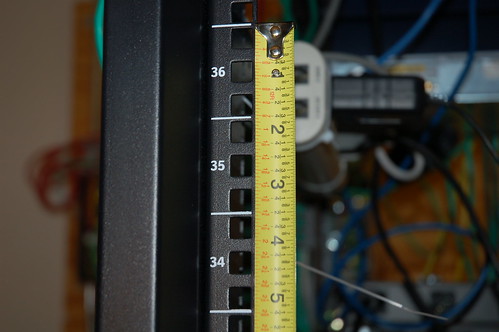
The first difference is form-factor. Tower servers are usually rated by the “tower” descriptive. Full tower, half tower, mid-tower. Rack Servers are sized according to ‘U’s, short for “Rack Unit”. It’s equivalent to 1 3/4 inches, so a 2U server is 3.5” tall. The standard width for rackmount servers is 19” across. Server racks vary in depth, between 23 and 36”, with deeper being more common.
Instead of shelves for each server, rack hardware holds the server in place, usually suspended by the sides of the machine. They allow the server to slide in and out, sometimes permitting the removal of the server’s cover to access internal components. Different manufacturers have different locking mechanisms to keep the servers in place, but all rack kits I’ve seen come with instructions.
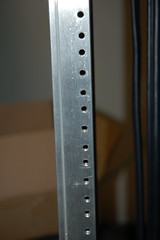
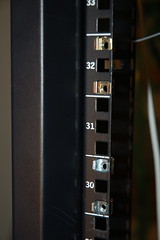 To anchor the rack hardware (also known as rails) to the rack itself, a variety of methods have been implemented. There are two main types of rack. Round hole racks, seen at the left, require a special type of rack hardware. Much more common is square hole racks, which require the use of rack nuts. The rack nuts act as screw anchors to keep the hardware in place. Some server manufacturers have created specific rack hardware that fits most square hole racks, and don’t require the use of rack nuts. Dell’s “rapidrail” system is one with which I’m very familiar. Typically you get the option of which rail system you want when you purchase the system.
Installing the rack nuts is made easier with a specialized tool. I call it the “rack tool”, but I’m sure there’s another name. The rack nut is place with the inside edge clip in place, through the hole. The tool is inserted through the hole, grabs the outside clip, and then you pull the hook towards you. This pulls the outside clip to the front of the hole, securing the nut in place.
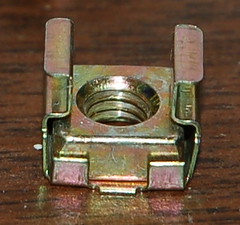 A typical server will require eight nuts, usually at the top and bottom of each rack unit, on the right and left sides, front and back. Each rack unit consists of three square holes, and a rack nut is put in the top and bottom of both the right and the left sides. Several pieces of networking equipment have space for four screws, but I’ve found that they stay in place fine with two. I can’t really recommend it for other people, but if you’re low on rack nuts, it’s better than letting the switches just sit there (and it almost always seems like you have fewer rack nuts than you need once your rack starts growing). If you only use two screws to hold in your n
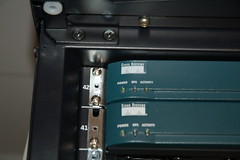 etworking equipment, make sure it’s the bottom two. The center of gravity of a rackmount switch is always behind the screws, so if the top screws hold it up, the bottom has a tendency to swing out, and that’s not good for your rack or your hardware.
While I’m on the subject of swtches, let me give you this piece of advice. Mount your switches in the rear of the rack. It seems obvious, but you have no idea how many people mount them on the front in the beginning because “it looks cooler” and then regrets it when they continually have to run cable through the rack to the front.
Once your rack starts to fill out, heat will become an issue. When you align your rack for your air conditioner, another bit of common sense that’s frequently ignored. Air goes into the servers through the front, and hot air leaves through the back. This means that when you cool your rack, you should point the AC towards the front of your rack, not the back.
Air comes in here... And leaves back here


It’s probably not a stranger to anyone who’s used a computer, but the cables seem to have a mind of their own, and nowhere is it more apparent than a reasonably full server rack. Many higher-end solutions provide built-in cable management features, such as in-cabinet runs for power cables or network cables, swing arms for cabling runs, and various places to put tie-downs.
There is no end-all-be-all advice to rack management, but there are some tips I can give you from my own experience.
Use Velcro for cabling that is likely to change in the next year. Permanent or semi-permanent cabling can deal with plastic zipties, as long as they aren’t pulled too tight, but anytime you see yourself having to clip zipties to get access to a cable, use Velcro. It’s far too easy to accidentally snip an Ethernet cable in addition to the ziptie.
Your rackmount servers will, in many cases, come with cable management arms. Ignore them. Melt them down or throw them away, but all they’ve ever done for me is block heat from escaping out the back.
Label everything. That includes both ends of the wires. Do this for all wires, even power cables (or especially power cables). Write down which servers are powered by which power sources.
If you have a lot of similar servers, label the back of the servers too. Pulling the wrong wire from the wrong server is not my idea of a good time.
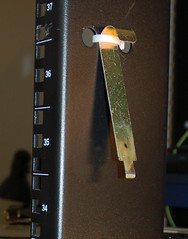
Keep your rack tool in a convenient, conspicuous spot. I ran a zip tie through the side of the rack, and hang mine there.
(Some photos were courtesy of Ronnie Garciavia Flickr)
Subscribe to:
Posts (Atom)

 Posts
Posts


